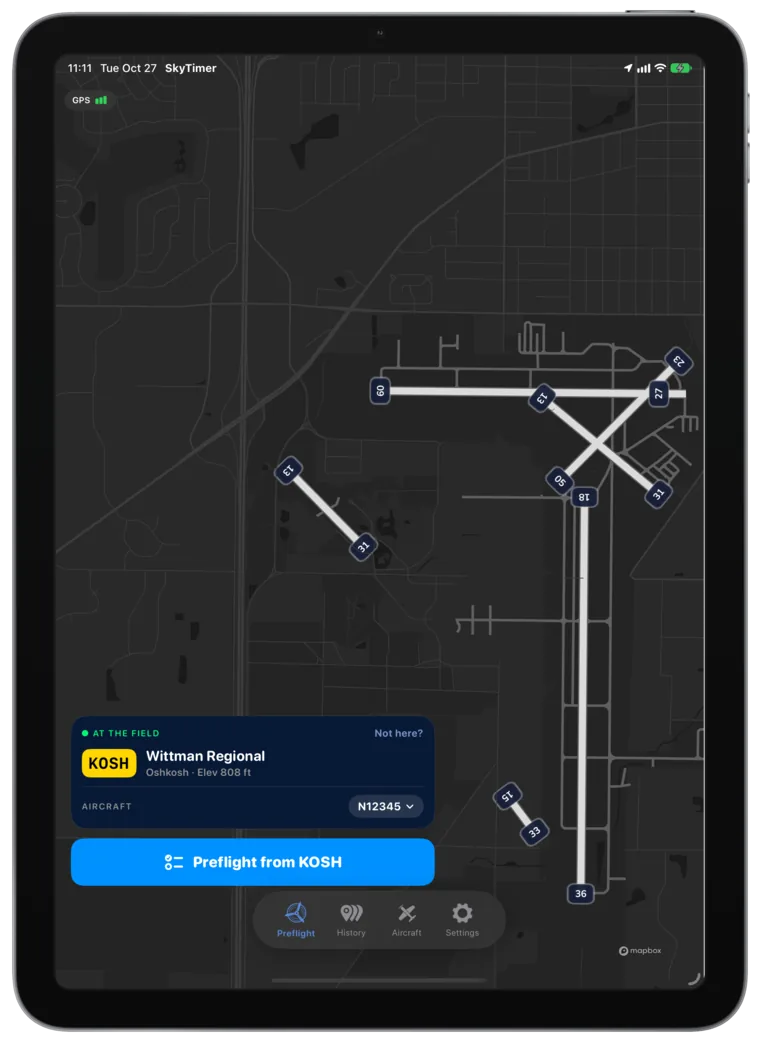
Flight timer & aircraft fuel tracker
Your fuel, tracked. Your flight, logged.
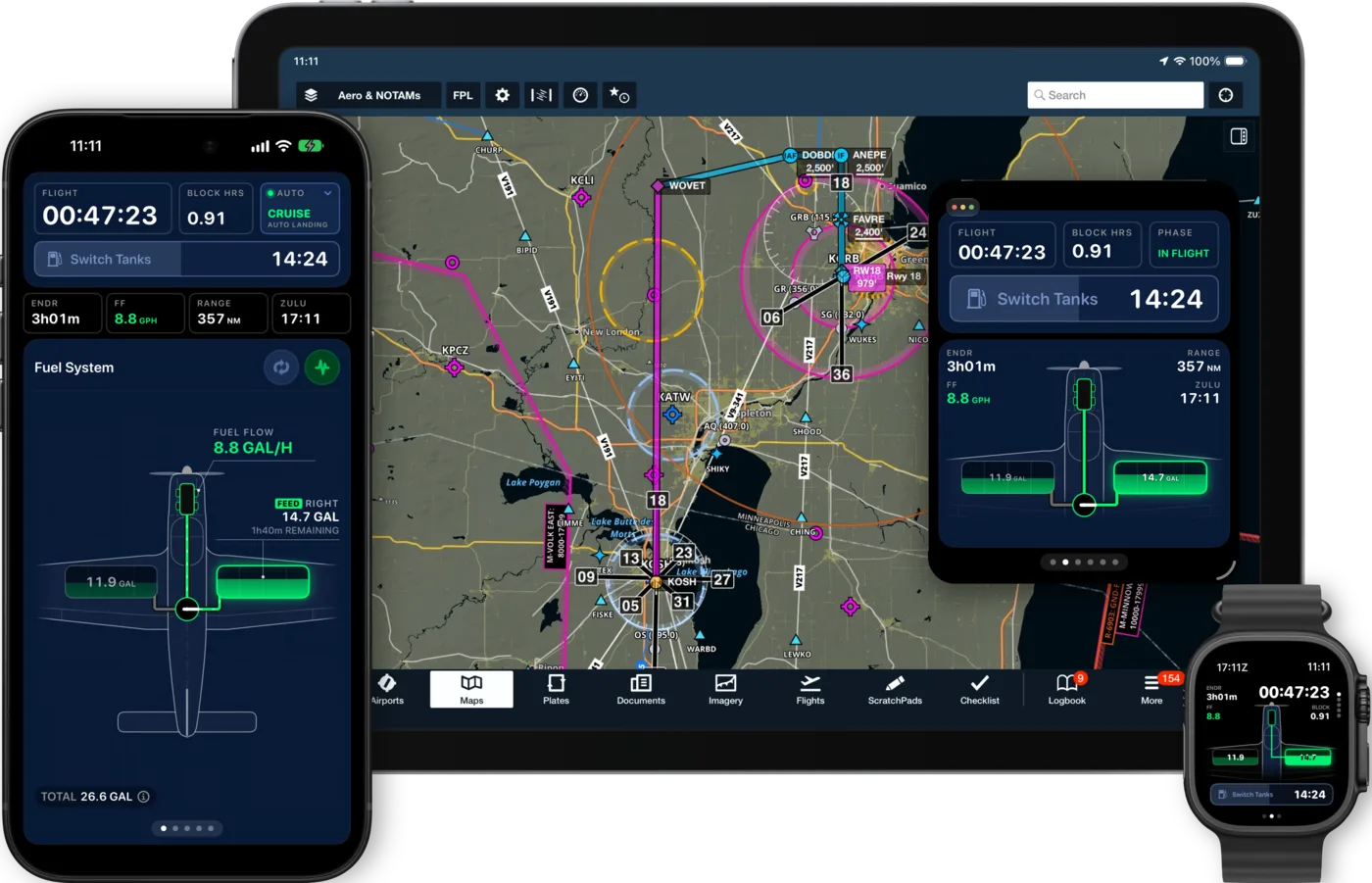
From a two-tank single to a twin with crossfeed, SkyTimer follows your configured fuel system, estimates fuel remaining, and reminds you when to switch. Automatic takeoff and landing detection captures your flight times and airports.
For iPhone, iPad, and Apple Watch.
Free to download. Block and flight timers are free. Fuel tracking and automatic flight logging are included with SkyTimer Plus.


Your fuel system, drawn as it really is.
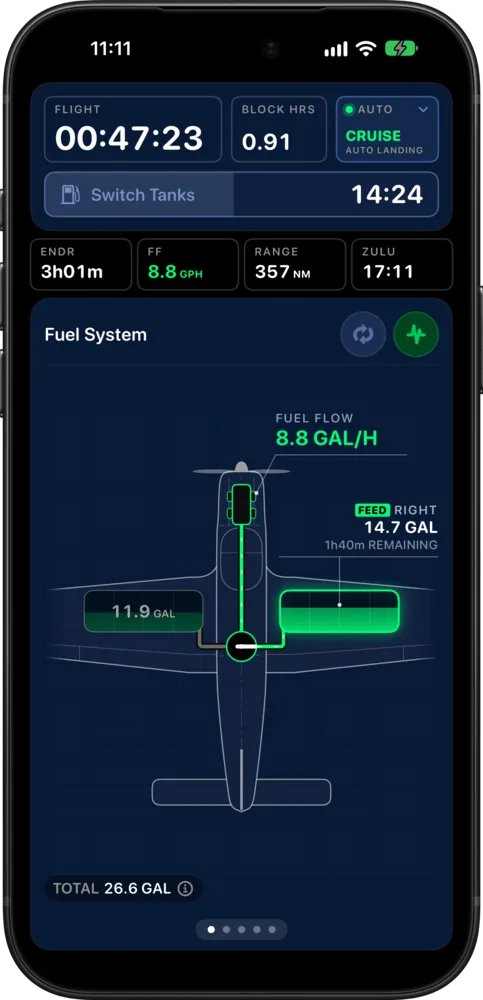
Set up your tanks, selectors, and pumps once. SkyTimer draws them, highlights the tanks feeding the engine, and estimates what’s left in each, whether you fly a simple two-tank single or a twin.
-
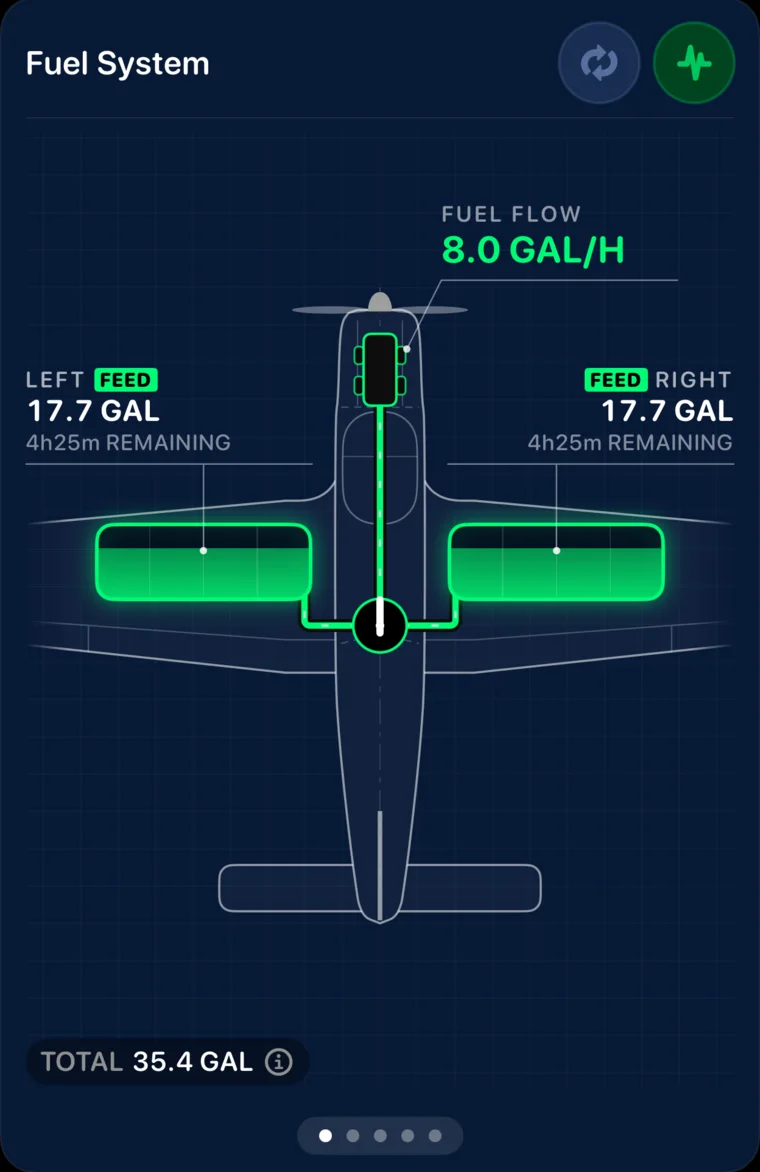
Cessna 172
Both tanks feeding the engine at once.
-
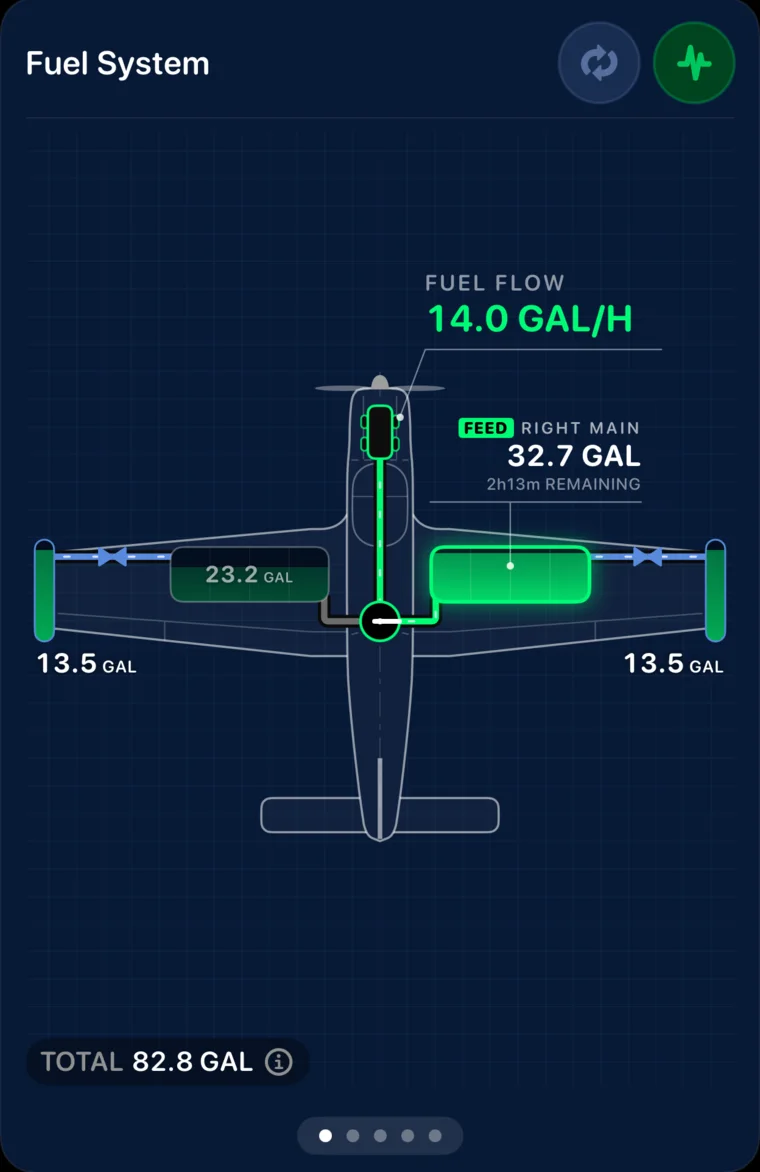
Bonanza with tip tanks
Pumps move fuel from the tips into the mains.
-
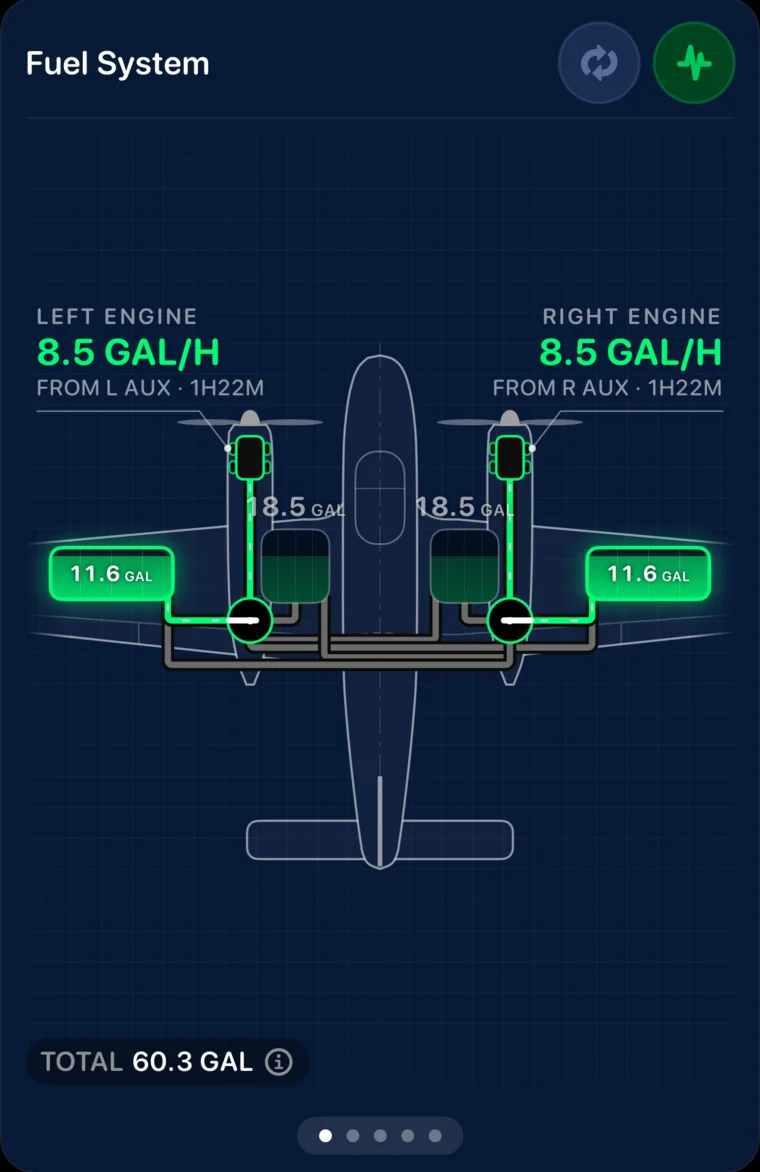
Twin Comanche
Each engine feeding from its own tank.
Fuel quantities, endurance, and range are estimates based on your inputs and flight data. Use your aircraft’s instruments and POH to manage fuel.
From preflight to shutdown.
-
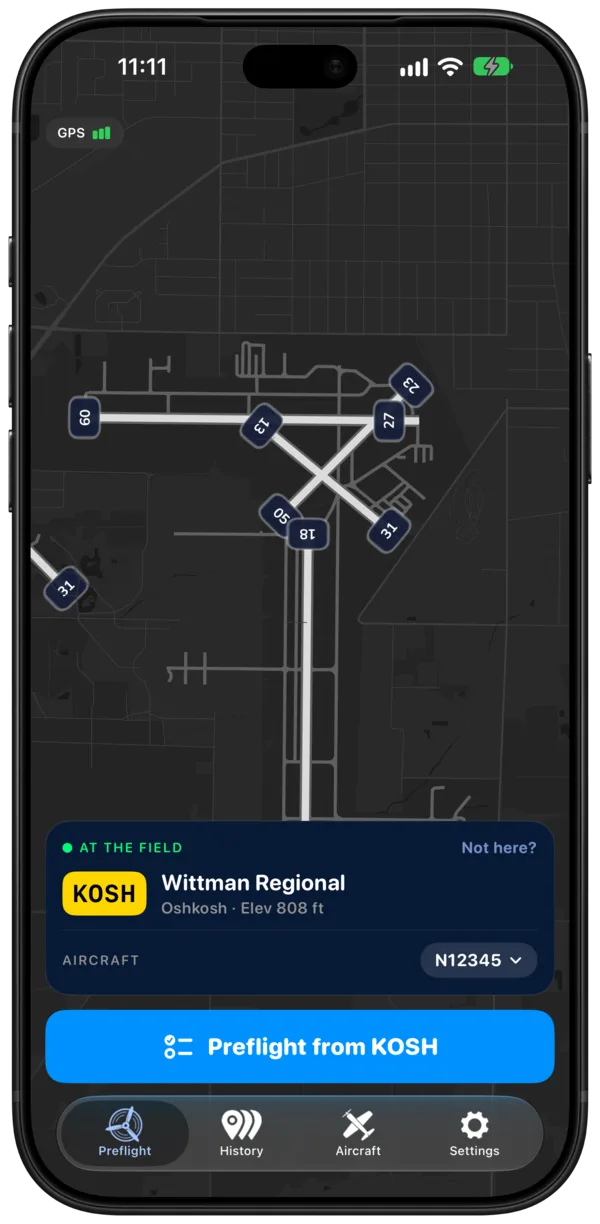
1 Before you taxi
Choose your departure airport, set your starting fuel, and enter your Hobbs and Tach readings. Start your trip when you’re ready.
-
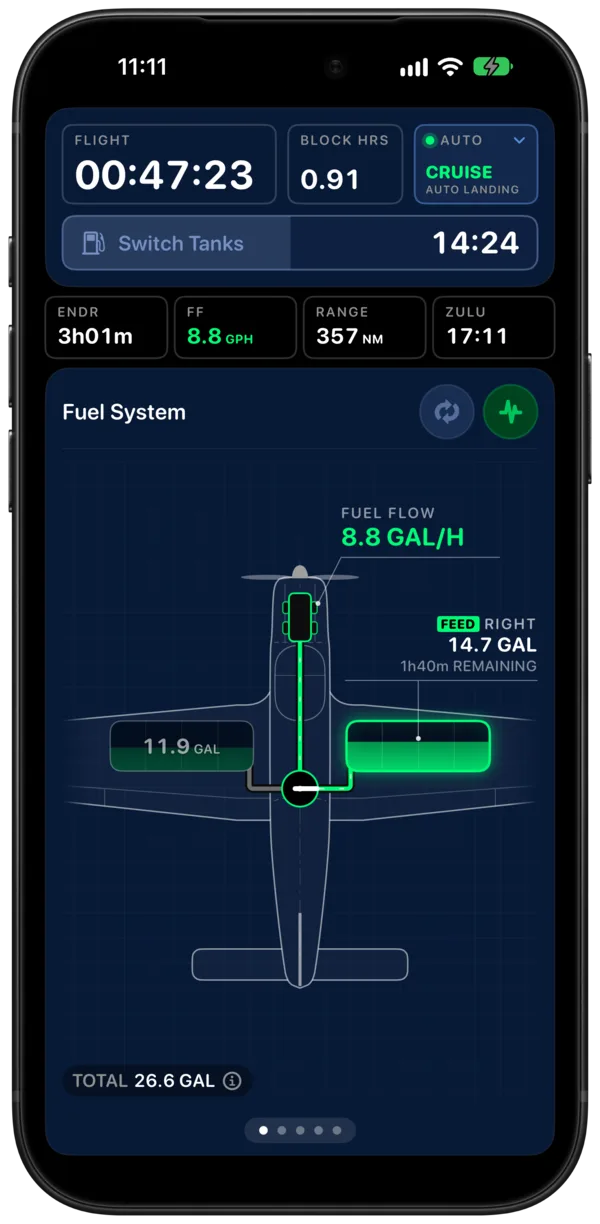
2 While you fly
SkyTimer uses GPS to detect takeoff and landing. Follow your fuel-switch countdown, update fuel flow when conditions change, and swipe through fuel, airport, and route details.
-
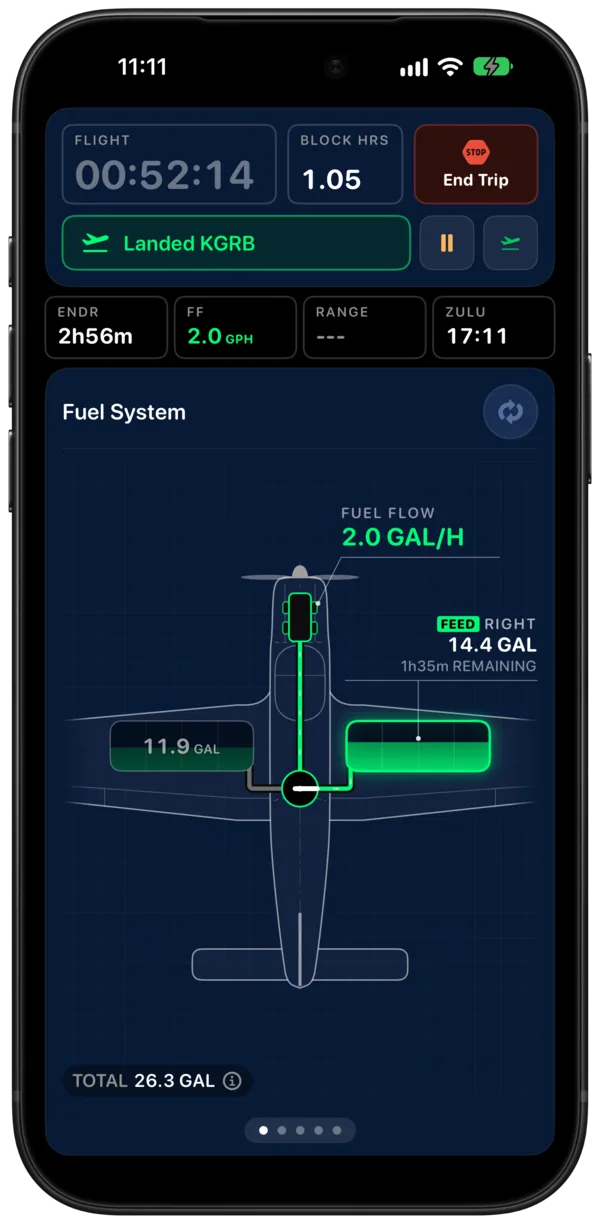
3 After shutdown
Finish your trip with your ending meter readings. Review flight and block times, airports, and a timeline of tank switches, then export your flight details.
Know when it’s time to switch.
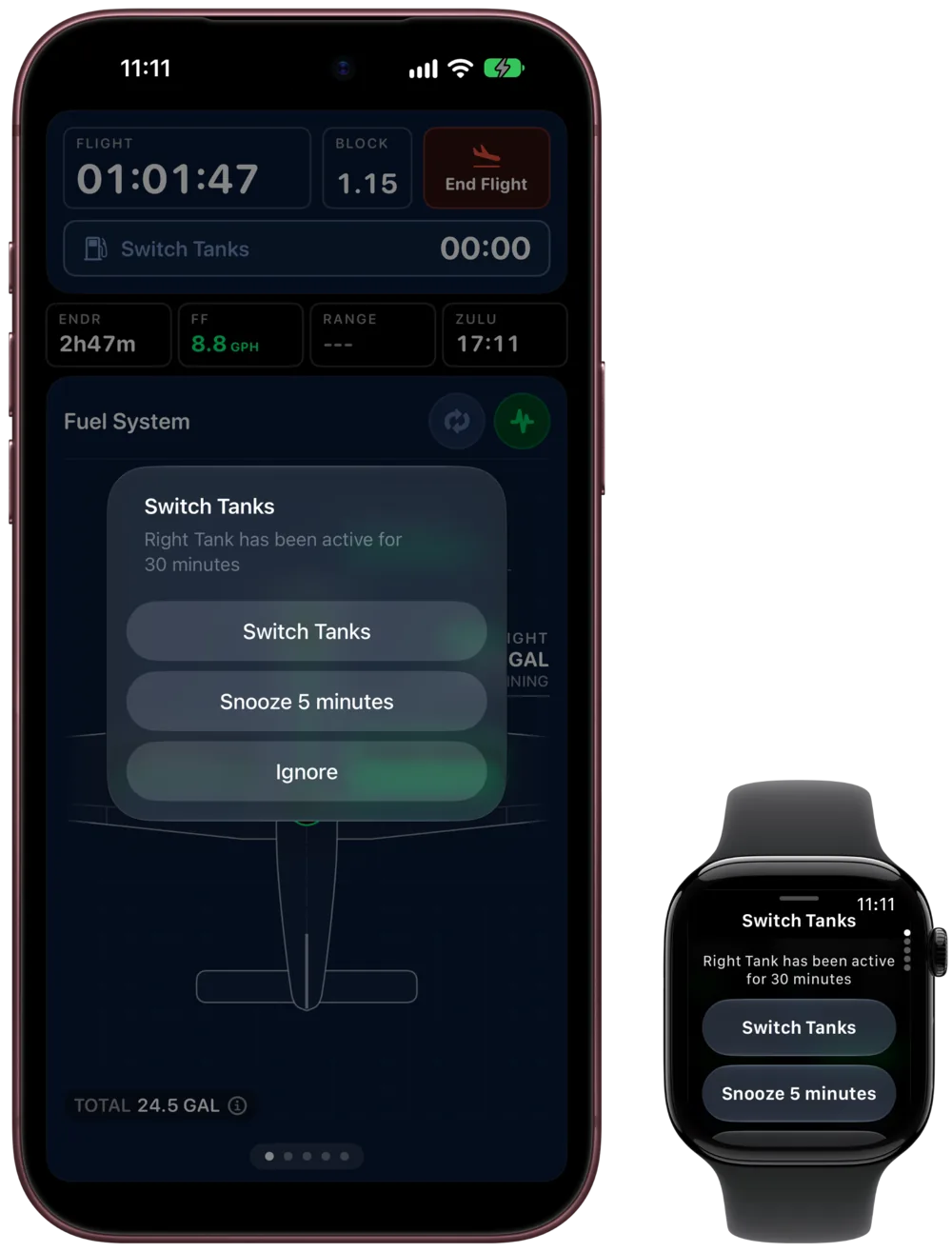
Set reminders for your aircraft and your fuel procedure: a timed tank switch, Smart Balance, a tank level, or a transfer-pump change. After you change tanks or pumps in the airplane, tap the matching action to update SkyTimer. Your next reminder counts down on the flight screen, with notifications available while you use another app.
Full screen, or beside your EFB.
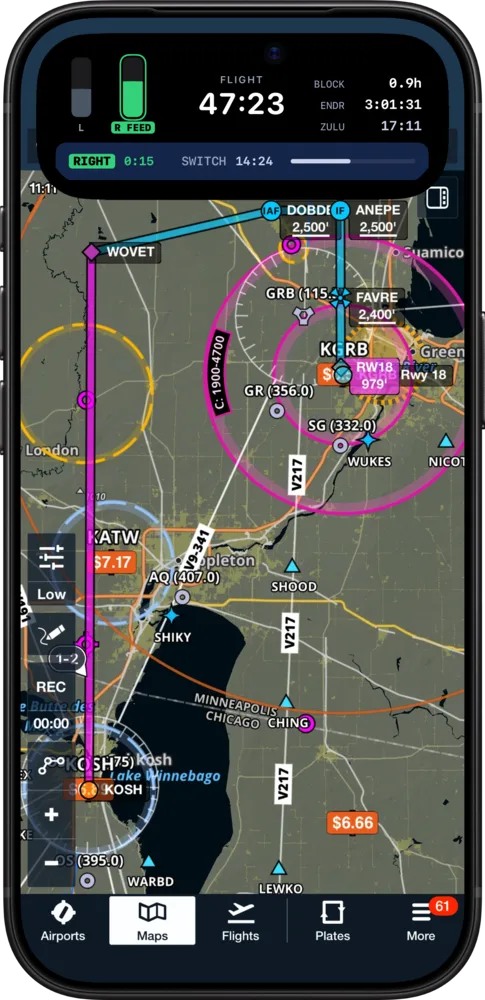
Fly with SkyTimer filling the screen, or keep it in view while ForeFlight or Garmin Pilot shows your charts. Switch whenever you like: your timers and fuel estimates keep running either way.
iPhone
iPad

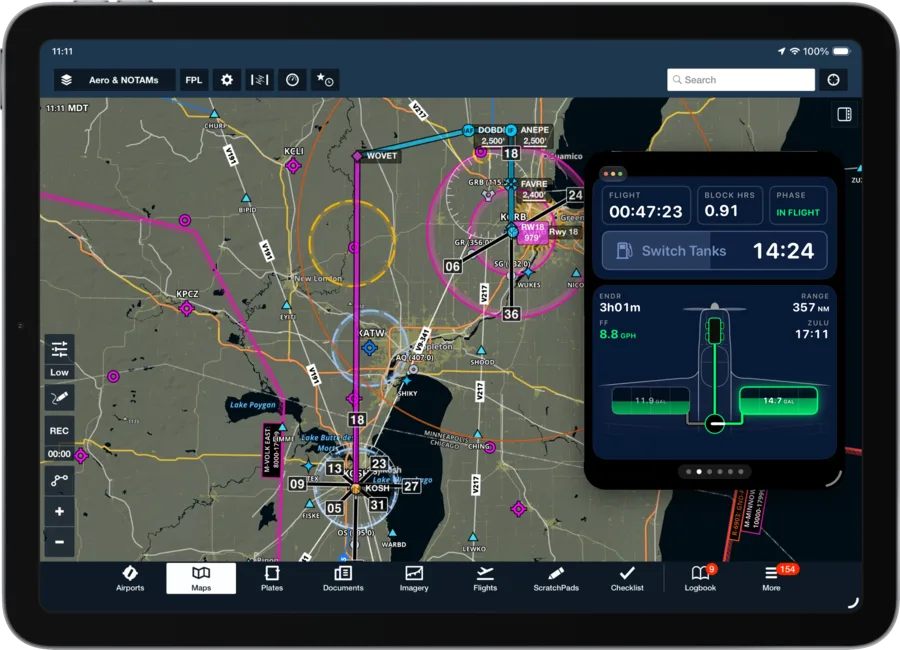
Tank reminders reach you either way, as Time Sensitive notifications and on Apple Watch. SkyTimer runs alongside your EFB; it doesn’t share data with it. Using SkyTimer with your EFB
More room for your flight, on every screen.


iPad: panels at every size.
Use the larger display to see more of your flight information in panels. Resize SkyTimer to suit your cockpit; the layout adapts down to compact windows and Slide Over.
iPhone Duo: a layout that opens up with you.
Folded, SkyTimer uses its phone layout. Unfold it for an expanded flight screen with panels and controls in the sidebar. Your aircraft collection and Settings expand to use the extra space, too.
Apple Watch: the next action on your wrist.
Check your flight, see the next switch, and respond to reminders from your wrist when your hands are busy.
The nearest airport, where to look for it.
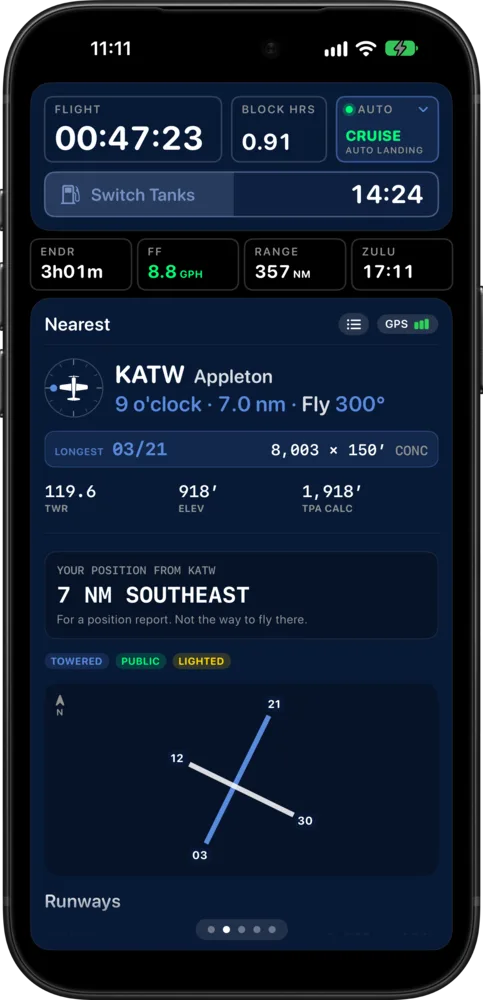
In flight, SkyTimer gives the nearest airport as a clock position from your track, like a traffic call: “KATW, 9 o’clock, 7 miles.” You know where to look out the window, and the card gives you the heading to fly there.
- The basics on the card. Longest runway, tower or CTAF frequency, field elevation, and pattern altitude.
- Your position for a radio call. “7 NM southeast” gives where you are from the field, ready for a position report.
- Airports that suit you. Show public airports or every field, and set a minimum runway length, so the nearest airport is one you’d use.
-
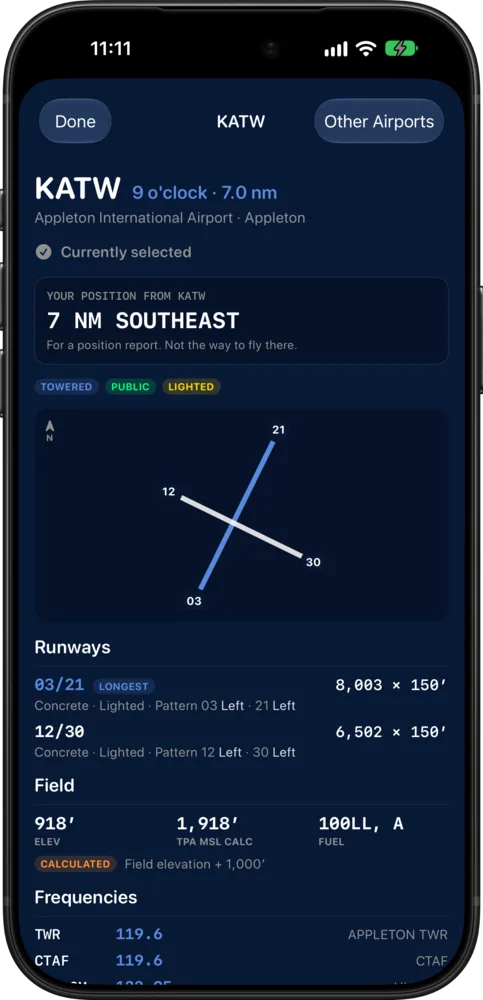
More about the field
Tap the card for more detail: runways with length, surface, lighting, and pattern direction, plus field elevation, pattern altitude, fuel, and frequencies.
-
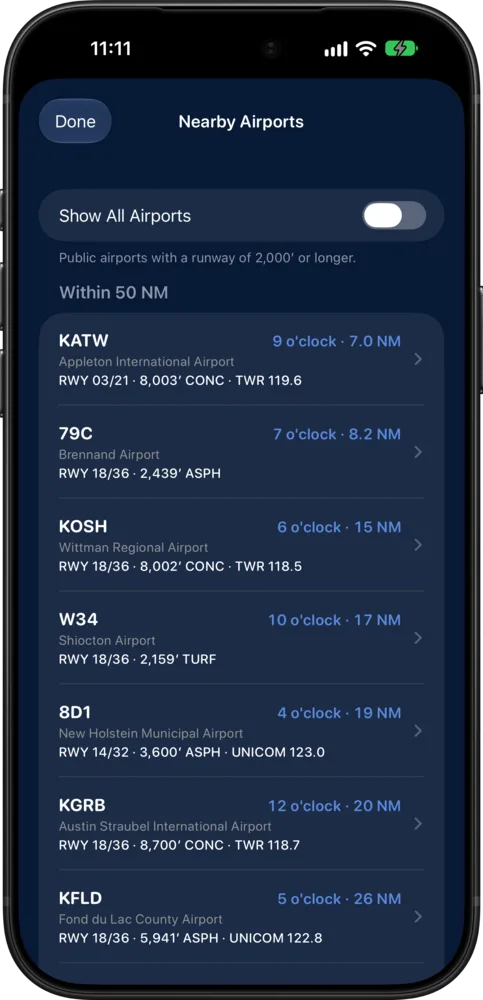
Pick another airport
See airports within 50 NM, each with its clock position, distance, longest runway, and frequency. Choose one and the card follows it. Turn on Show All Airports to include every field.
-
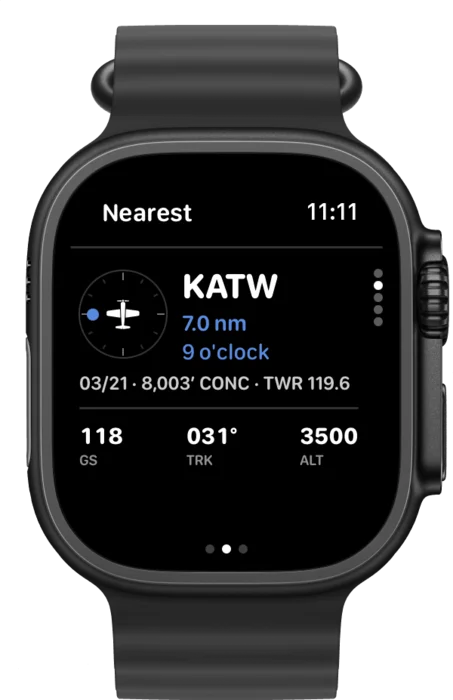
On your wrist
Apple Watch has its own Nearest page: a dial pointing at the airport, its clock position and distance, the longest runway and frequency, and your ground speed, track, and altitude.
Airport information is for reference. Check the Chart Supplement, current charts, and NOTAMs before you rely on it.
Try a flight before your next flight.
SkyTimer’s guided test flight plays a sped-up trip from Oshkosh to Green Bay right in the app, using your own aircraft setup or a sample aircraft. In about three minutes, it walks you through preflight, a tank reminder, airport details, and landing, with tips along the way. Nothing is added to your flight log.
Download SkyTimer to try itStart with the timers. Add the full flight picture.
SkyTimer is free to download, with free block and flight timers. SkyTimer Plus adds fuel tracking, tank reminders, automatic takeoff and landing detection, and more across iPhone, iPad, and Apple Watch.
Free
- Block and flight timers
- Nearest airport details
- Guided test flight
- Up to 10 saved trips
SkyTimer Plus
- Fuel tracking by tank
- Tank-switch and pump reminders
- Automatic takeoff and landing detection
- Unlimited trips and aircraft
- LogTen and CSV export
- iCloud sync across iPhone, iPad, and Apple Watch
Monthly or annual, in the app.
Frequently asked questions
More questions? Visit Support.
How does SkyTimer estimate fuel remaining?
You enter starting fuel and fuel-flow rates. SkyTimer uses those values, the time that passes, your configured fuel system, and the tank and pump changes you record to estimate fuel used and remaining in each tank. You can update fuel flow during the flight. SkyTimer doesn’t connect to your aircraft, and these estimates do not replace your aircraft’s fuel instruments or POH.
Does SkyTimer know when I switch tanks?
No, you tell it. When you switch tanks or turn a pump on or off, tap the matching action on the reminder, or tap the valve on the fuel drawing. SkyTimer updates its estimates from there. If you switch early, record it then and the reminder interval starts over.
Which iPhone or iPad do I need?
One with built-in GPS: any iPhone, or a Wi-Fi + Cellular iPad. SkyTimer keeps watching GPS while it’s in the background, behind your EFB or with the screen locked, to catch your takeoff and landing. An external Bluetooth or Wi-Fi GPS receiver can’t keep that going when SkyTimer isn’t the app on screen, so on a Wi-Fi-only iPad you start and end each flight yourself.
Does it need cell service in flight?
No. Takeoff and landing detection, fuel tracking, and Nearest all run on the device, using GPS and the airport database built into the app. A connection is only needed for things like iCloud sync and airport data updates.
What does the endurance readout include?
The time until all usable fuel on board, across every tank, is used at your current fuel flow. It doesn’t hold back a reserve, so set a low-fuel warning for the margin you want. Unusable fuel is set aside when you set up each tank.
What permissions does SkyTimer ask for?
Location, so it can find your airport and follow your flight in the background during a trip, and notifications, so reminders reach you while you use other apps. Fuel reminders are Time Sensitive, so they can come through a Focus.
Does it work with ForeFlight or Garmin Pilot?
You can run SkyTimer alongside your EFB on iPad and use supported Live Activity and Dynamic Island views on iPhone. Fuel reminders can also arrive as notifications while another app is open.
Does it automatically read Hobbs and Tach?
You enter the readings at the start and end of your trip. SkyTimer stores both with your flight details when your aircraft is configured to track both meters.
Can I try the new screens on the ground?
Yes. The guided test flight walks you through a simulated flight using your aircraft setup or a sample aircraft, without saving a real trip.
Do I need to create an account?
No. SkyTimer doesn’t require an account. Your aircraft and flights are stored on your device and synced across your devices with your iCloud account.
Meet your next flight’s cockpit companion.
Download SkyTimer for iPhone, iPad, and Apple Watch.

Requires iOS 17 or later; Apple Watch requires watchOS 10 or later. Some features require newer software or supported hardware.
Stay in the know
Occasional news about new SkyTimer features. No spam, ever.